
Before you start
This guide covers version 1.6.0: printing methods, pricing, artwork collection and details retained with WooCommerce orders.
- WordPress 6.0+
- PHP 8.1+
- WooCommerce 6.0+
Install and find the controls
- Activate WooCommerce, then install the plugin ZIP through Plugins → Add Plugin → Upload Plugin.
- Activate the plugin and open Printing Methods in the sidebar.
- Use Add New to create a method, or Edit to open an existing one.
- Configure the method and select Save Printing Method. Approval and storage settings are under Printing Methods → Settings.
Assign methods to products
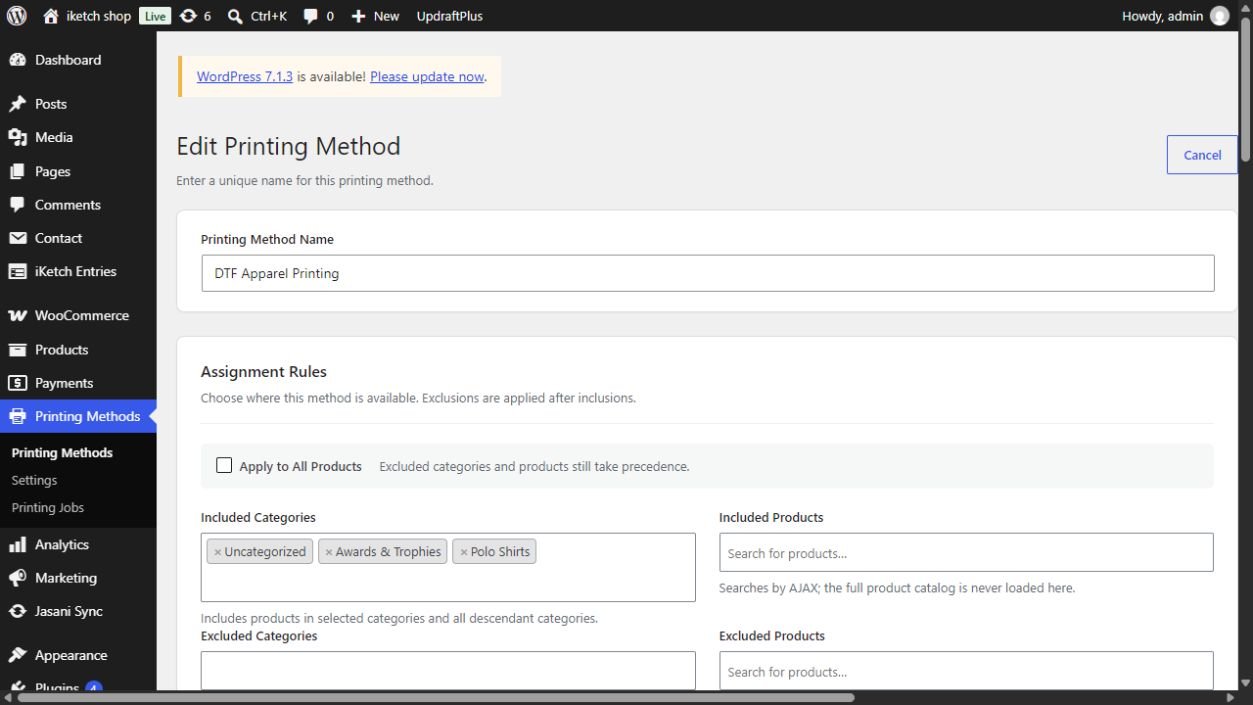
Give the method a clear name, then use Assignment Rules to define its availability.
| Field | Purpose |
|---|---|
| Apply to All Products | Make the method available to all products, subject to exclusions. |
| Included Categories / Products | Assign selected categories or products. Selected categories include descendants. |
| Excluded Categories / Products | Exclude products or categories; exclusions override inclusions. |
| Priority | Lower numbers appear first; ties use name, then method ID. |
In the product editor, open Product data → Printing Cost Manager Pro. Printing Assignment Mode can inherit rules, use manually selected methods or disable printing for the product.
Setup fees and quantity tiers
Under Pricing Model, enter Setup Cost and printing quantity limits. A maximum of 0 removes the method limit; printing quantity still cannot exceed the ordered quantity.
Disable Enable Quantity-Based Pricing for a fixed per-item rate. Enable it to add Min Qty, Max Qty and Price per item tiers without gaps or overlap.
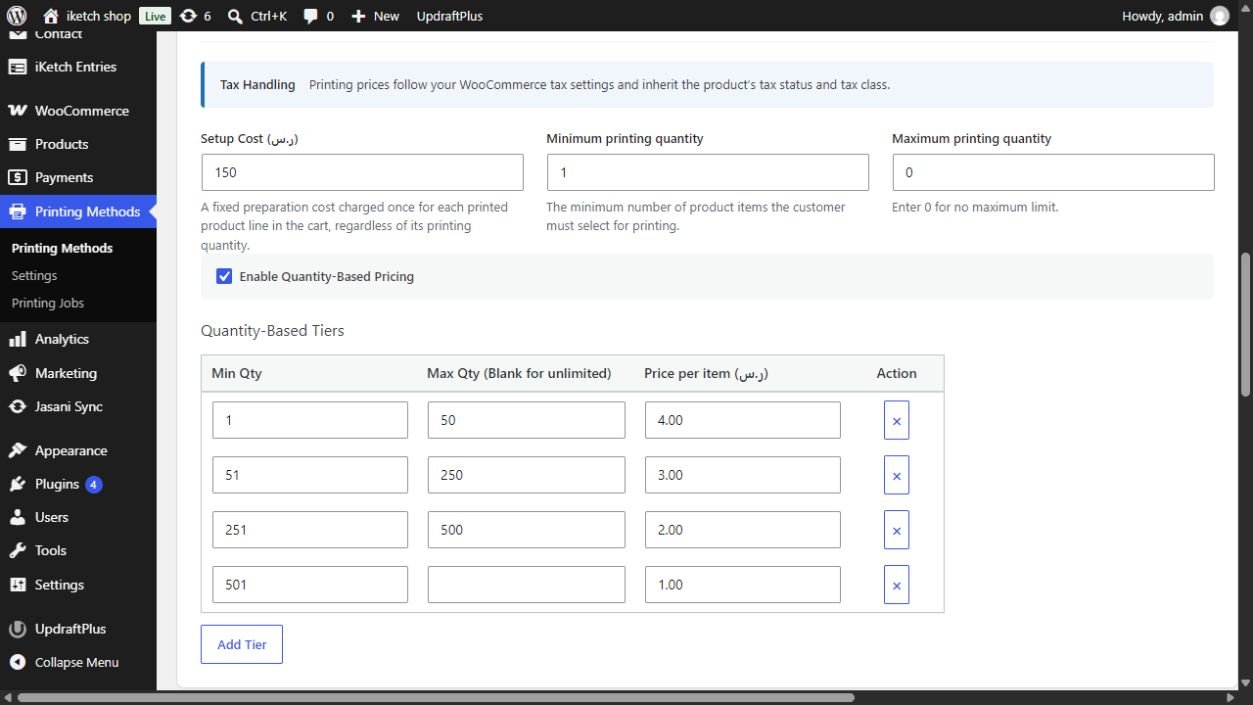
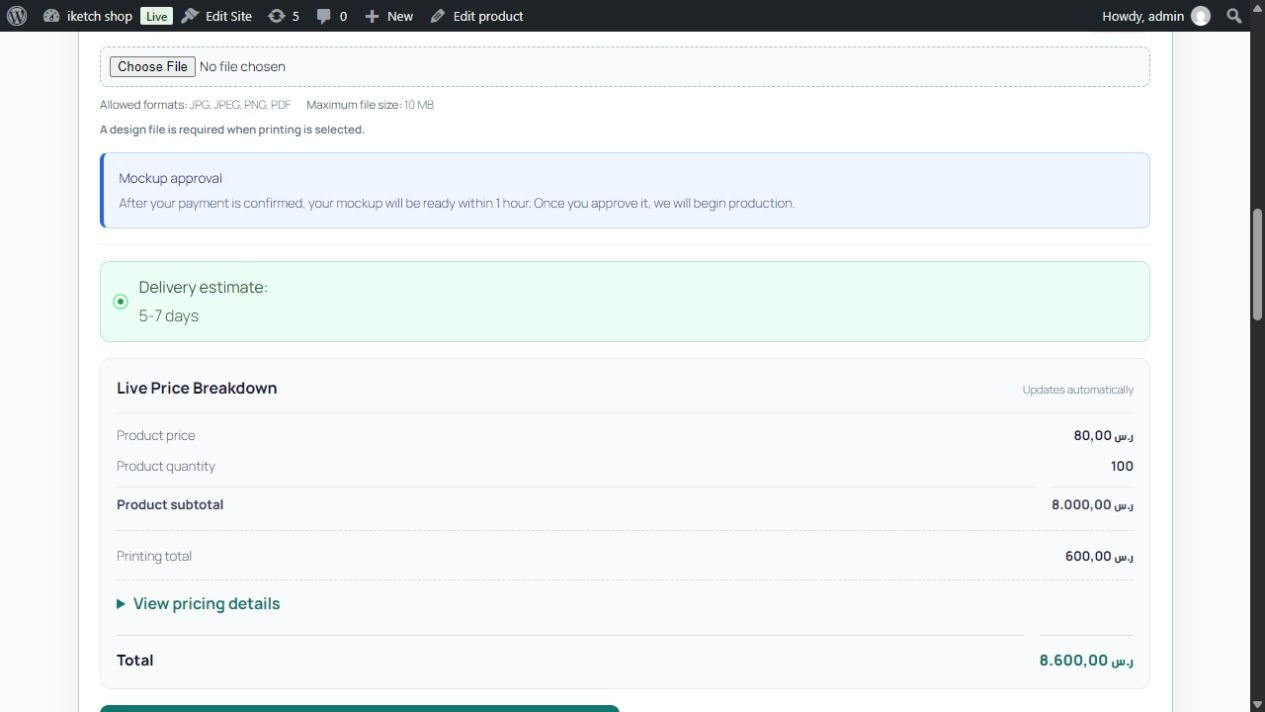
From the captured settings: 100 printed items at SAR 3 each plus SAR 150 setup total SAR 450. Selecting both sides with a 1.5 multiplier makes printing SAR 600. These are store settings, not plugin licence prices.
Printing options and artwork
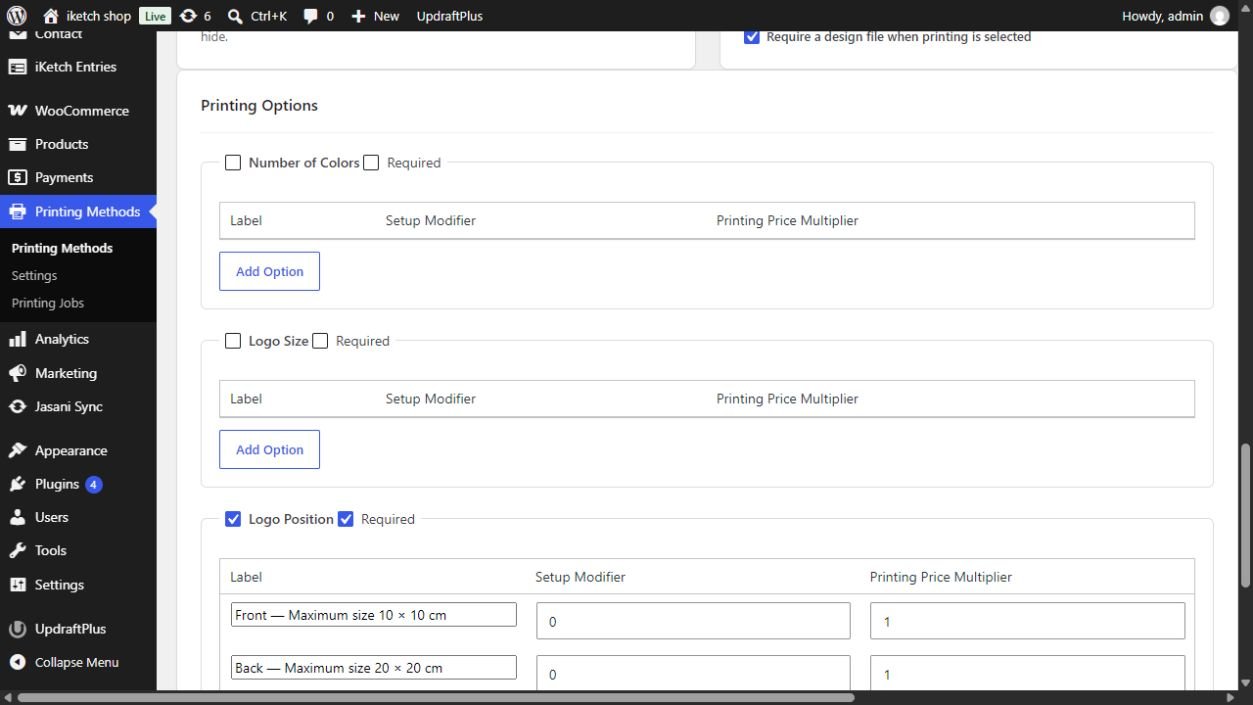
Printing Options enables Number of Colors, Logo Size and Logo Position, including required choices. Each option has a Label, Setup Modifier and Printing Price Multiplier.
Under Print File Upload, choose JPG/JPEG, PNG and PDF formats and a maximum file size. Enable Require a design file when printing is selected when artwork is mandatory. The captured example allows up to 10 MB.
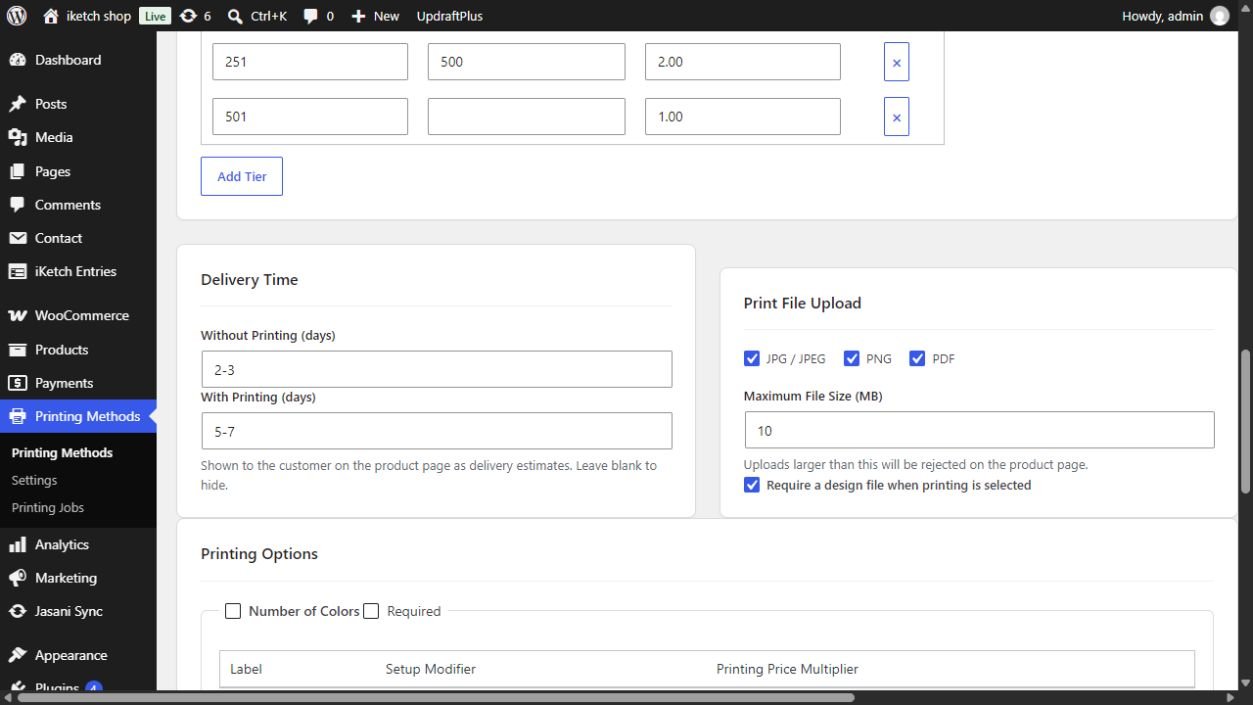
Use Without Printing and With Printing under Delivery Time to show estimates. Leave them blank to hide estimates; these are store-defined values, not an iKetch delivery commitment.
Product print areas
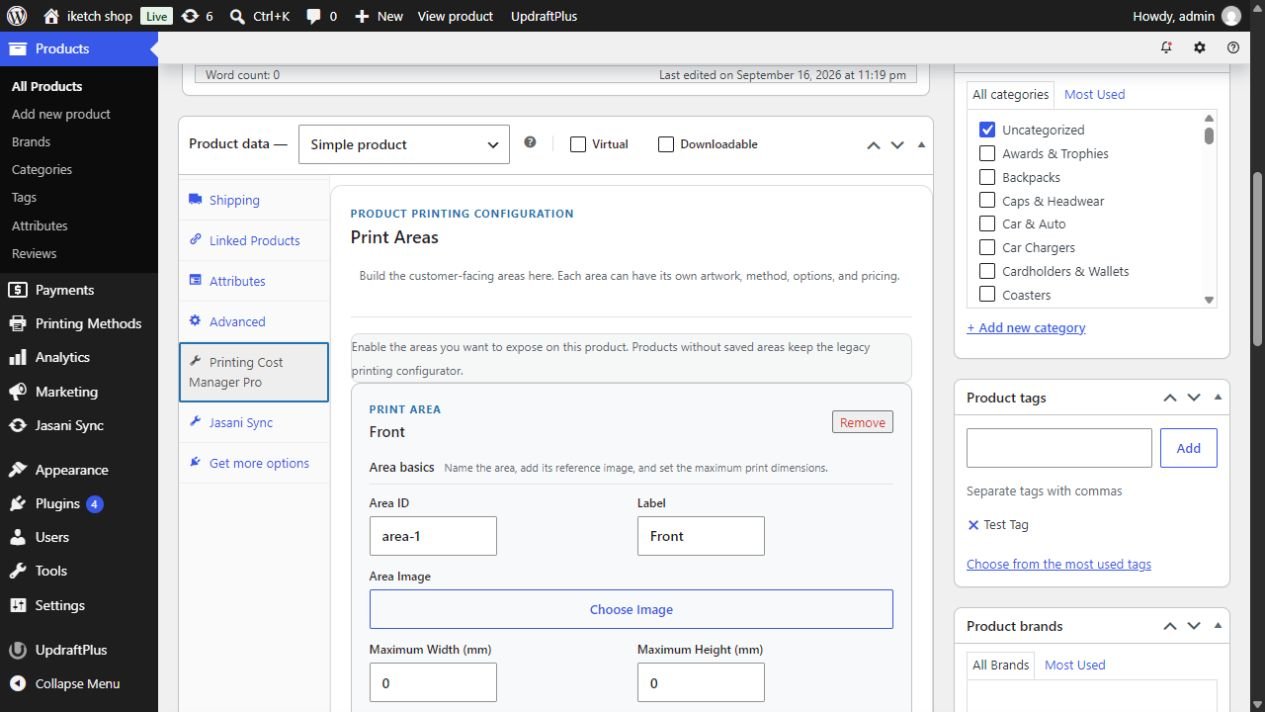
Under Product data → Printing Cost Manager Pro → Print Areas, add areas such as front and back. Each area has a name, image, dimension limits, allowed methods, artwork, options and independent pricing.
- Set a Label and stable Area ID, then add an image and maximum dimensions in millimetres when needed.
- Choose allowed methods. Use method defaults or custom pricing, with Setup Extra and quantity tiers when needed.
- Set Require this area and Selected by default for the product. The optional illustrative image is a placement reference.
- Save the product and test each area on the storefront. Products without saved areas use the standard printing interface.
Customer and cart workflow
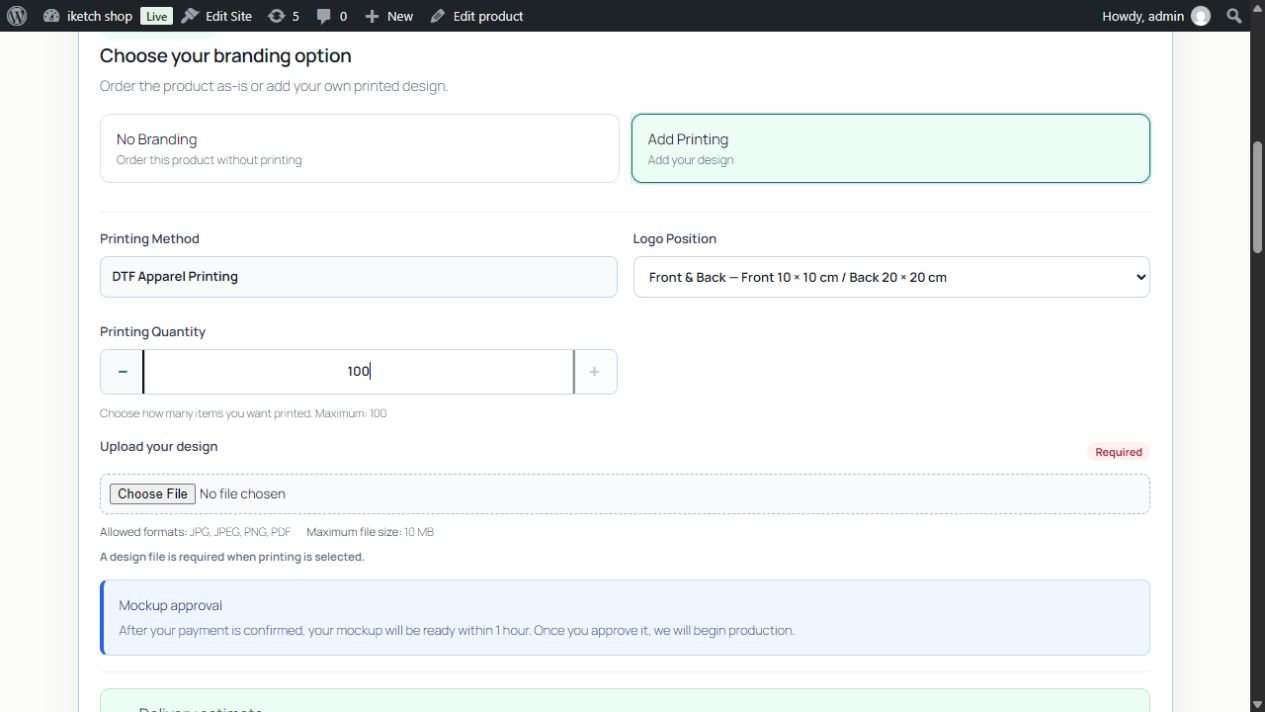
- The customer sets product quantity, then chooses No Branding or Add Printing.
- For printing, they select a method, options and printing quantity, then upload artwork if required.
- Live Price Breakdown shows product price, printing cost and total. Review the amounts before adding to cart.
- Printing details follow the product line into the order. Tax treatment follows the product’s WooCommerce status and class.
Mockup approval and production
Under Printing Methods → Settings, choose Workflow mode: Disabled for external approval, Design approval only, or Full workflow — approval and production. Enable the method’s participation under its Mockup Workflow settings.
Set Mockup target in hours, protection against production before approval of the latest mockup, customer/store notifications and revision limits. A revision limit of 0 means unlimited. Choose a target your team can meet.
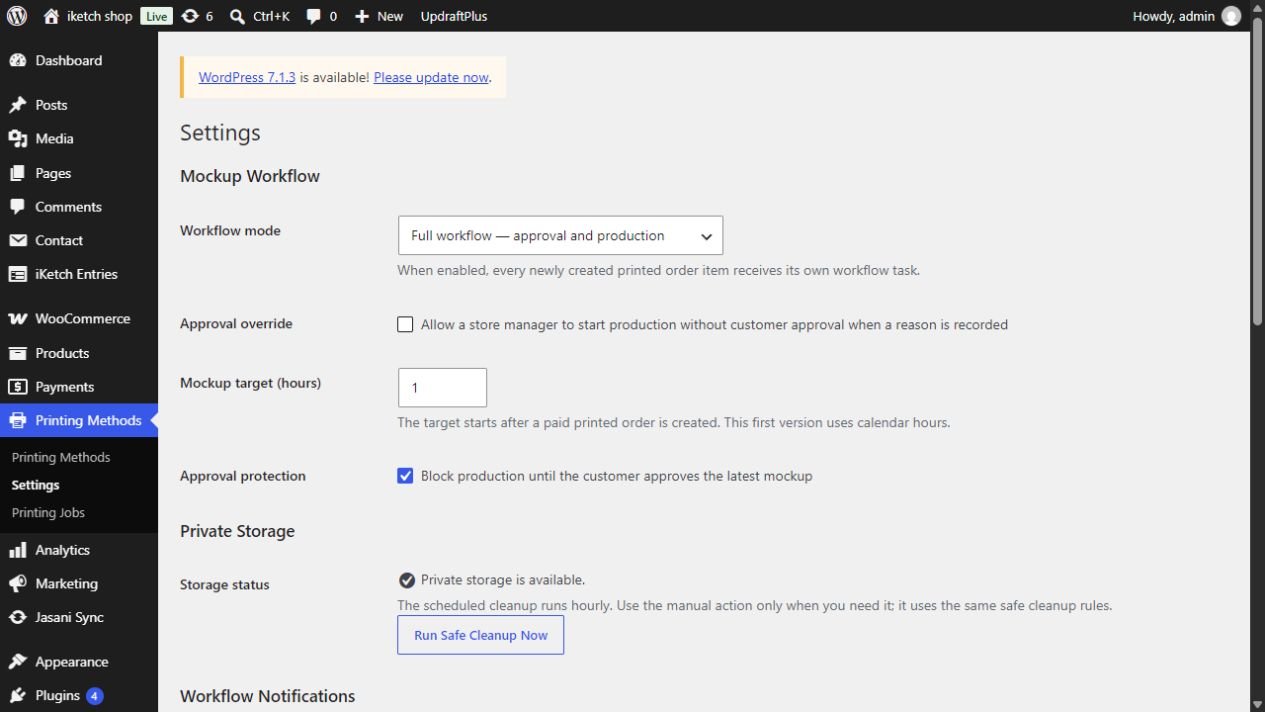
Manage tasks through Printing Jobs. The source retains mockup versions and an action trail; these tools do not mean iKetch performs printing or reviews artwork on the store’s behalf.
Storage and retention
Artwork uses a protected plugin-owned directory; new uploads are not added to the WordPress Media Library. Downloads require access checks. Review Private Storage under Settings after migrations or server changes.
Scheduled cleanup removes unlinked temporary uploads after 24 hours by default. Order artwork is retained indefinitely by default; its policy can be customised in code. Mockup File Retention is separate from original artwork retention.
Proposed Free and Pro allocation
| Feature | Free — proposed | Pro — proposed |
|---|---|---|
| Printing methods | One method | Multiple methods |
| Setup fee and fixed per-item price | Included | Included |
| Product and category assignment | Included | Included |
| Print part of the order quantity | Included | Included |
| Artwork validation and protected storage | Included | Included |
| Printing details saved with the order item | Included | Included |
| Quantity-based pricing tiers | Not included | Included |
| Colour, size and position options with price modifiers | Not included | Included |
| Assignment exclusions and method priority | Not included | Included |
| Multiple print areas with independent settings | Not included | Included |
| Mockup approval and production jobs | Not included | Included |
| Printing method import and export | Not included | Included |
Validation and troubleshooting
- If printing is missing, check Assignment Rules, exclusions, product assignment mode and allowed area methods.
- Test tier boundaries such as 50 and 51 items, partial printing quantities and option multipliers.
- For rejected files, check format, size, required-upload settings and Private Storage. Test a valid file and an oversized one.
- Check printing cost and tax in cart, checkout and the order, particularly for mixed tax classes.
- If approval does not start, check the global workflow mode, method participation and payment status; test a complete approval cycle on a staging order.
For support, send plugin and WooCommerce versions, the affected method settings, reproduction steps and screenshots without customer details or artwork.