
Before you start
The plugin adds a toggle for tax-inclusive and tax-exclusive prices. WooCommerce calculates the tax using your store settings; you don’t enter a tax rate inside Tax Toggle.
- WordPress 6.2+
- PHP 7.4+
- WooCommerce installed and active, with taxes enabled and rates configured.
Install and activate
- In WordPress, open Plugins → Add Plugin → Upload Plugin.
- Choose the ZIP for the edition you want to use, select Install Now, then Activate.
- Open WooCommerce → Settings → General and make sure taxes are enabled. Then open Tax and check your store’s tax settings and rates.
- Open WooCommerce → Settings → Tax → Tax Toggle (iKetch).
- Enable Tax Toggle, configure your options and select Save changes.
If the Tax tab is missing, check whether taxes are enabled in WooCommerce General settings. The approved download link will be added once confirmed; Pro is not required for basic switching.
Choose the starting mode
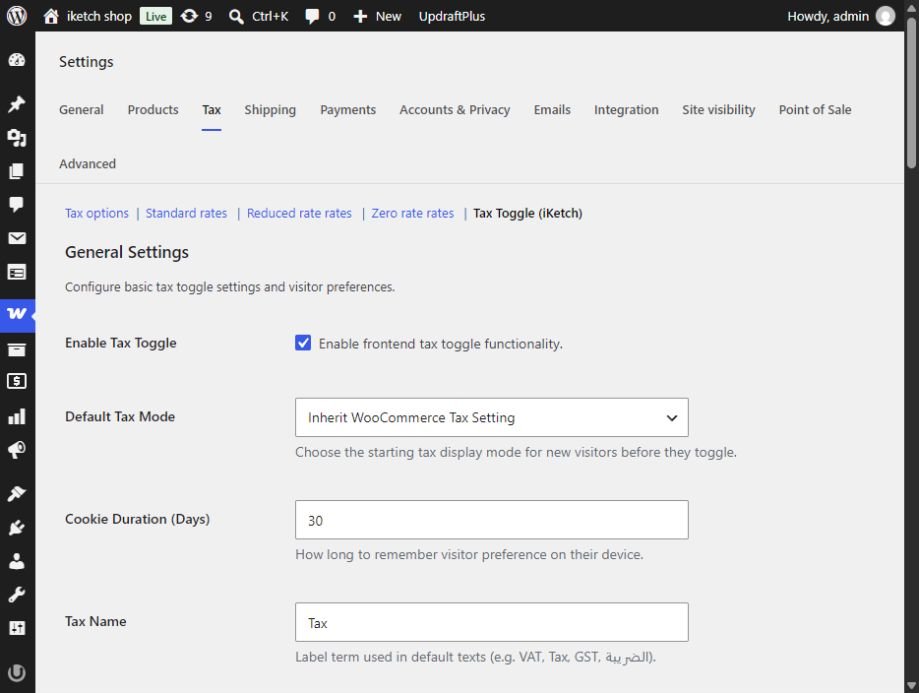
General Settings controls the price mode a new visitor sees and how long their choice is remembered.
| Setting | What to choose |
|---|---|
| Enable Tax Toggle | Enable or disable the storefront toggle. |
| Default Tax Mode | Inherit follows WooCommerce. Including Tax starts with tax-inclusive prices; Excluding Tax starts with tax-exclusive prices. |
| Cookie Duration (Days) | How many days the visitor’s choice stays on their device. The default is 30 days. |
Set your price labels
In General Settings, set Tax Name to the term your store uses, then edit Including Tax Label and Excluding Tax Label. For example: “Including VAT” and “Excluding VAT”.
Under Price Labels, choose the label position separately for product cards and single product pages:
- Catalog Tax Label Placement: Labels in shop archives, categories and product cards.
- Single Product Tax Label Placement: Labels next to the main price on a product page.
Choose no label, before the price, after it or on a new line below. Check mobile too, especially if your label is long.
Choose where the toggle appears
Inline — Free and Pro
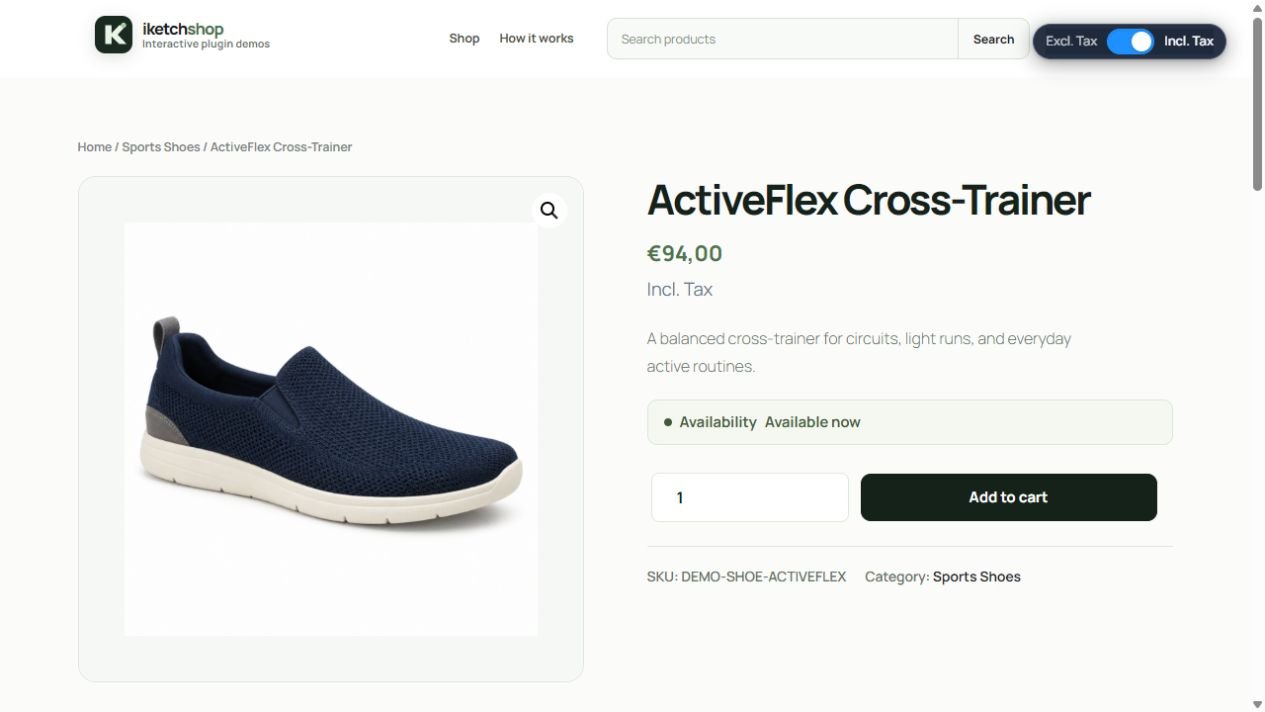
The free edition places the toggle within shop and product contexts. In the edition with advanced controls, choose Inline Toggle under Automatic Toggle Type for this placement.
Floating — Pro
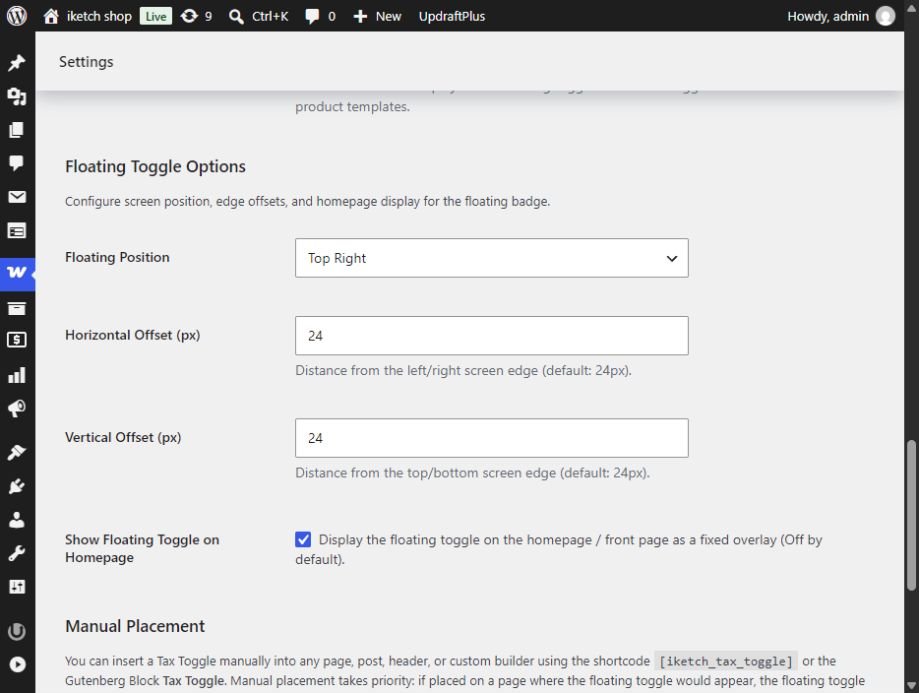
Choose Floating Toggle under Automatic Toggle Type. In Floating Toggle Options, select a screen position and set Horizontal Offset and Vertical Offset for the distance from its edges.
Enable Show Floating Toggle on Homepage if you want it on the front page. Check that it doesn’t cover your cart, chat or other important mobile controls.
Use a shortcode or Gutenberg block
Shortcode · Free & Pro
- Open the page or template where you want the toggle.
- Add a Shortcode block, or a shortcode-capable element in your page builder.
- Paste the following code, save and open the page on the storefront.
[iketch_tax_toggle]Gutenberg · Free & Pro
- In the WordPress editor, select + to add a block.
- Search for Tax Toggle and insert the block where you need it.
- Save the page and try the toggle on the storefront.
Match the toggle to your store
Free uses a fixed light, rounded design. In Pro, open Toggle Design and choose:
| Setting | What it changes |
|---|---|
| Toggle Style | Modern Animated Switch for a switch, or Dual Buttons for two mode buttons. |
| Appearance | Light or Dark appearance. |
| Toggle Shape | Rounded or Square corners. |
| Accent Color | The active and focus colour. Choose one that stays clear against your store background. |
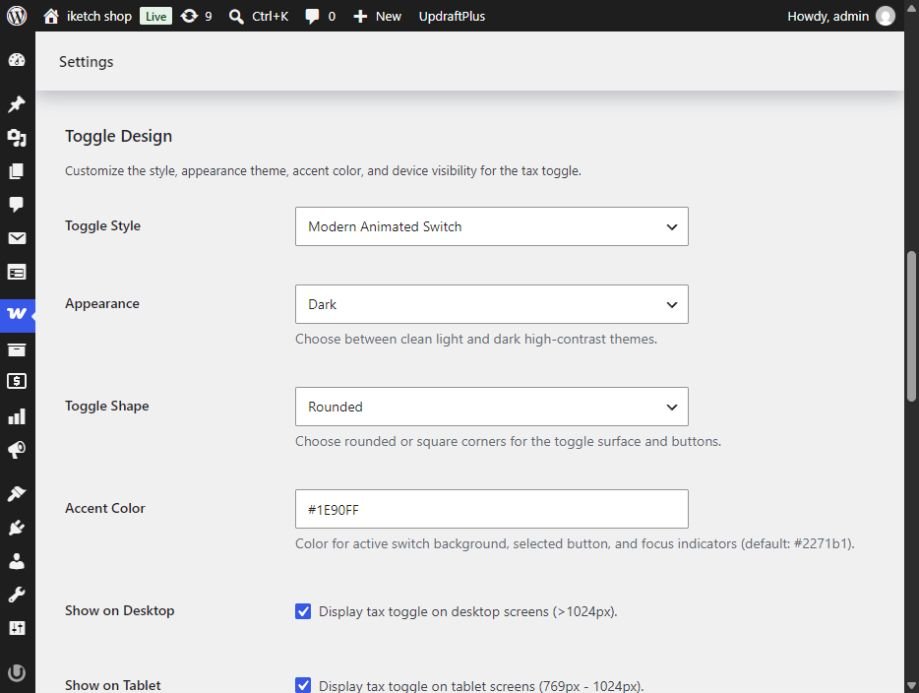
Show on Desktop, Show on Tablet and Show on Mobile control device visibility and are available in both Free and Pro.
What comes with each edition?
| Feature | Free | Pro |
|---|---|---|
| Price-display switching and WooCommerce calculations | Included | Included |
| Inline, shortcode and Gutenberg | Included | Included |
| Default mode, labels and saved preference | Included | Included |
| Device visibility, Arabic and RTL | Included | Included |
| Floating position, offsets and homepage placement | Not included | Included |
| Style, appearance, shape and colour controls | Fixed design | Customisable |
If you just want customers to switch price display, Free is enough. Choose Pro for floating placement or more control over the toggle’s design.
Check that everything works
- Open your store in a private window and check the initial display mode.
- Open a simple taxable product and use the toggle. Check the amount and label in both modes.
- Repeat with a sale product and a variable product. Choose a specific variation before checking its price.
- Open another product or reload the page and check that your choice is remembered.
- Check placement on mobile and tablet, then use Tab to reach the toggle and test keyboard operation.
Troubleshooting
The toggle is missing
Check Enable Tax Toggle and device visibility. Try a shop or product page and check the chosen placement. A manual shortcode or block on the page suppresses the floating toggle.
The label changes but the amount stays the same
Check WooCommerce taxes, product tax status and class, the rate applicable to the customer’s address and any exemption. If tax should apply but the amount still stays the same, record the steps and contact support.
The new default mode isn’t showing
Try a new private window to rule out a previously saved choice, and check that you selected Save changes.
Old prices or labels are still showing
Clear page, browser and site caches. Try switching after load. In staging, compare with cache or JavaScript optimisation plugins temporarily disabled.
The toggle appears twice
Check for repeated shortcode or Tax Toggle blocks in the page, header and template. Keep one manual insertion in the intended location.
The toggle overlaps another control
In Pro, change Floating Position or edge offsets. Test each screen size, or use Inline if floating placement doesn’t fit.
Technical Support
Send your plugin and WooCommerce versions, theme name, a product link or screenshot, and the steps that reproduce the issue. Include whether you use Free or Pro and whether it happens on mobile or desktop.
For additional details, Enable Debug Console Logging in Advanced & Diagnostics shows diagnostic information in the browser console for administrators. Enable it only while investigating an issue, then turn it off.