

Before you start
A completely free plugin that saves Contact Form 7 submissions to the WordPress database. This guide covers 2.3.1; screenshots show an English dashboard.
- WordPress 5.3+
- PHP 7.0+
- Contact Form 7
Neither WooCommerce nor Flamingo is required. Other form builders are not supported. Capture starts after activation; earlier unstored submissions cannot be recovered.
Installation and your first test entry
- Install and activate Contact Form 7, then create a form or use an existing one.
- Under Plugins → Add Plugin, search for Entries Database for Contact Form 7 – iKetch, install and activate it. You can also upload the ZIP from the official listing.
- Open the form on your site and submit a message using test data.
- Open Entries Viewer in the WordPress sidebar and check that the submission appears. The photographed version retains this menu label despite the new public plugin name.
- Check email delivery separately; a stored entry does not confirm successful delivery.
Search and follow-up
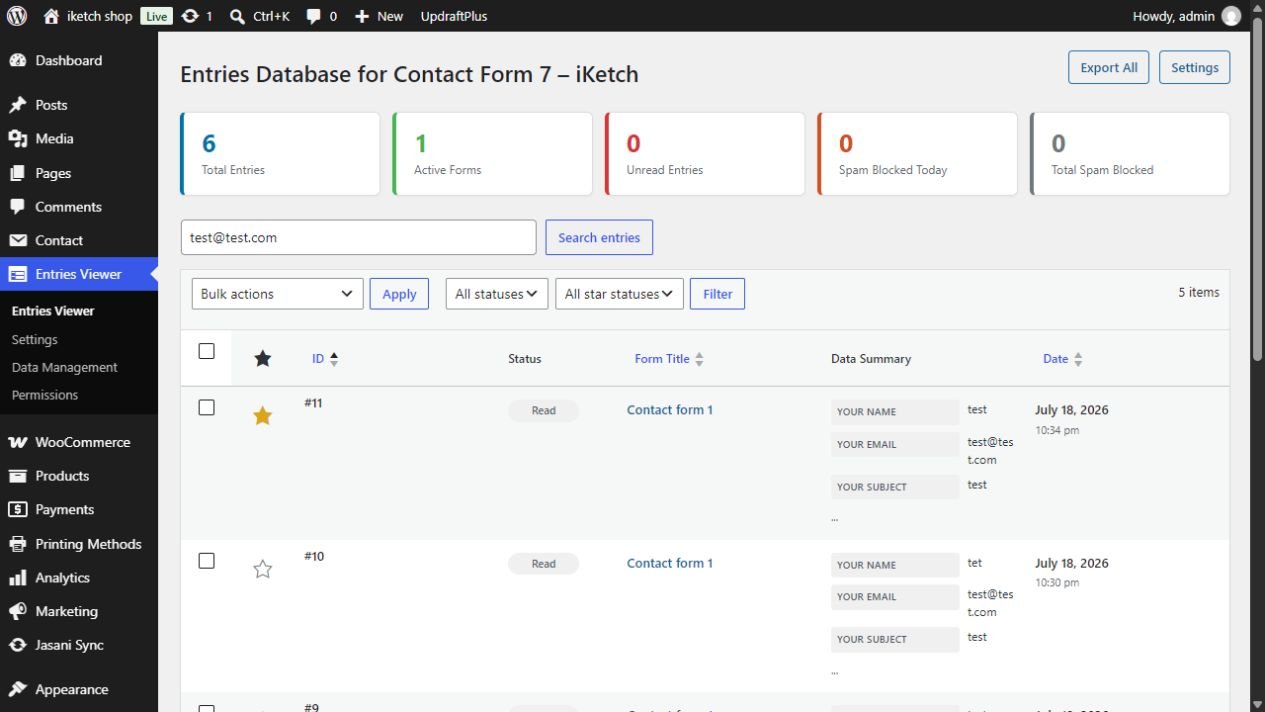
- Enter a keyword or email in Search entries and submit the search.
- Use All statuses for read/unread and All star statuses for favourites, then select Filter.
- Use the star to add or remove a favourite.
- Select entries, choose Mark as read or Mark as unread under Bulk actions, then Apply.
CSV exports and printing
- Use Export All for all entries. Do not assume this action is restricted to the current search results.
- For a specific set, select entries, choose Export CSV under Bulk actions and Apply.
- For a single entry, open View and use Export CSV or Print Entry on the detail screen.
- Open the CSV in Excel or import it as UTF-8. Store exported files where only the appropriate team members can access them.
Storage and attachment settings

- Entries per page: number of entries shown on each list page.
- Save uploaded files: enable copying attachments when your CF7 form has an upload field. Disabling it stops saving new submission attachments.
- Honeypot Spam Protection: a hidden field helps detect bots. If filled, the submission is marked as spam and is not saved.
- Select Save Changes after editing settings.
Copied attachments live under uploads/cf7-entries, with protection files and permission-checked admin download routes. Review your server configuration and test unauthorised download prevention.
Team permissions
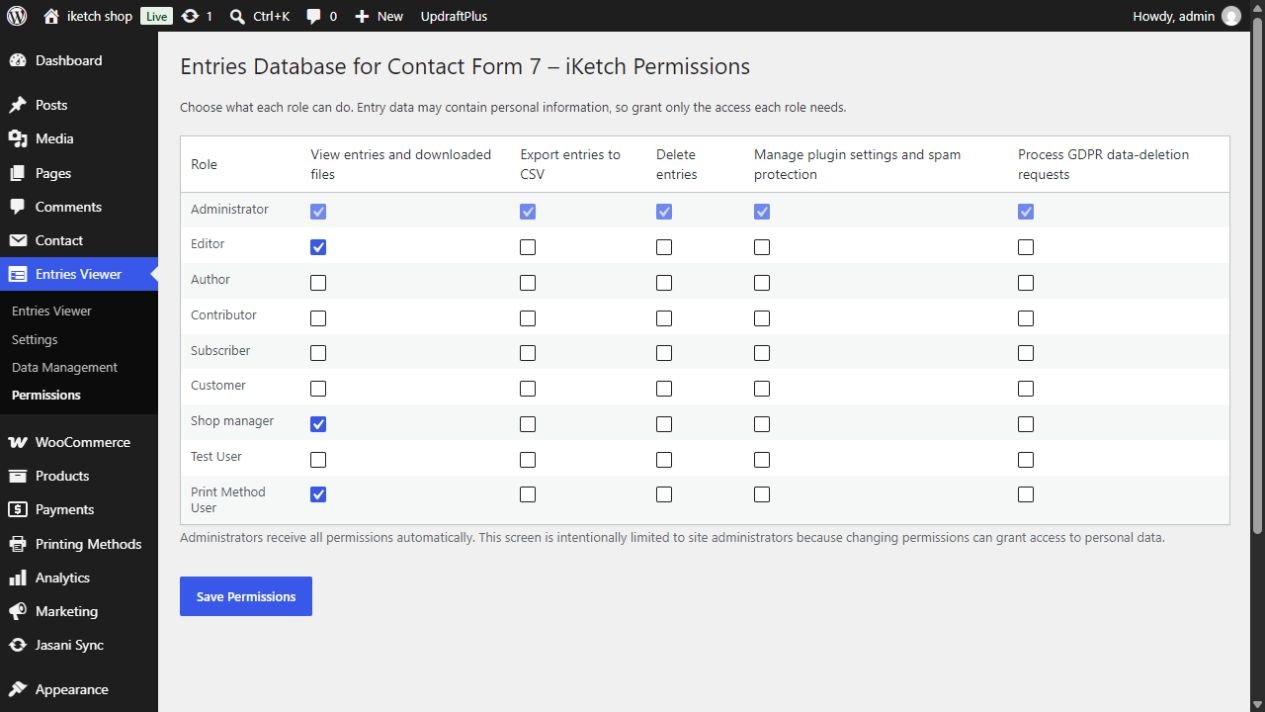
- Open Entries Viewer → Permissions.
- Grant the role the viewing/download, export, deletion, settings and privacy permissions needed for its work.
- Save permissions and test with an account assigned to that role. Administrator permissions remain fixed in the interface.
Viewing permission does not automatically grant export or deletion. Assign access according to each role’s need for customer data.
Retention and automatic cleanup
In Settings, Auto-cleanup old entries sets entry age in days. A value of 0 disables cleanup. When enabled, a daily WordPress scheduled task deletes entries older than that age.
Email-based deletion and uninstall
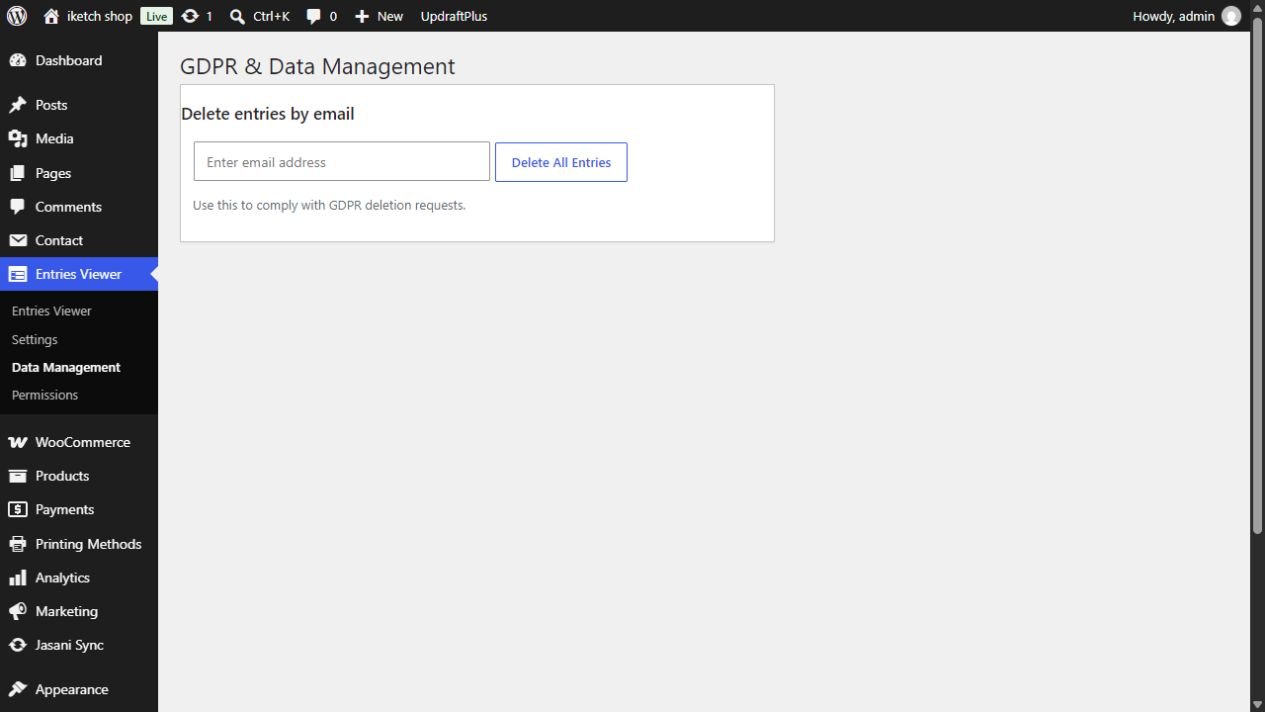
- Open Entries Viewer → Data Management.
- Verify the requester and the data scope under your organisation’s procedures.
- Enter the email and use Delete All Entries only after verification; this deletes entries matching that address.
Delete data on uninstall in Settings controls removing the plugin’s entries, settings and files when deleting it from Plugins. Deactivation differs from uninstalling.
Checks and troubleshooting
- No new entry: confirm both plugins are active, send a new test submission, and check spam classification and viewing permissions.
- Entry saved but no email: check CF7 mail settings and your delivery service; archiving does not repair mail delivery.
- Missing attachments: check the form upload field, Save uploaded files and upload-directory write permissions.
- View returns to the list: reload for a fresh link, check account permissions and admin redirects or caching rules. If it persists, send support the reproduction details without customer data.
- Before real use: test capture, search, favourites, export and a non-admin role, then verify attachment and entry retention behaviour.